 Disk Password Protection
Introduction
The hard disk space large current partition is to contain data. You can use the "Disk Password Protection" to hide the partition hard drive that you use to store the sensitive data.
Pasword Protection Disk can hide the entire partition containing all data on your hard disk in a very safe and works even with all types of USB memory card is attached to the computer. If you are a careful user can apply immediately to the DPP boot partition to C one can not boot the computer if no appropriate password.
Technical guidelines
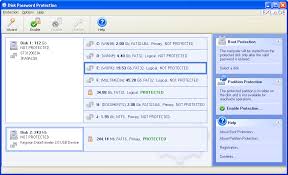
The use of the DPP also very easy on the friendly interface. Here's how:
1. Lock all the sub-region as well as any USB memory card is attached to the computer: You only need to click to choose the partition memory card or extra USB DPP has been listed -> click the Enable button Partition table appear Protection -> enter password to use to enter the password box and Confirm the password. If you are a forgetful type you can recommend me to remember password in the Password hint -> click OK to complete.
2. Lock your boot partition: often used to partition C and slightly more than a little Khe. Click Wizard -> Check Boot Protection in selecting just the Protection Mode and click Next -> Select the hard drives you in selecting Disk and click Next to appear when entering the Password and hint -- > enter the password used to enter the password box and Confirm the password -> finally click Start button to complete.
After completing the above, DPP will ask you to enter the password at the appropriate stage to boot DOS computer can log in to the Windows boot.
http://www.exlade.com/download/dppsetup.zip


Không có nhận xét nào:
Đăng nhận xét